PTZ Flow! Camera Control, Simplified.
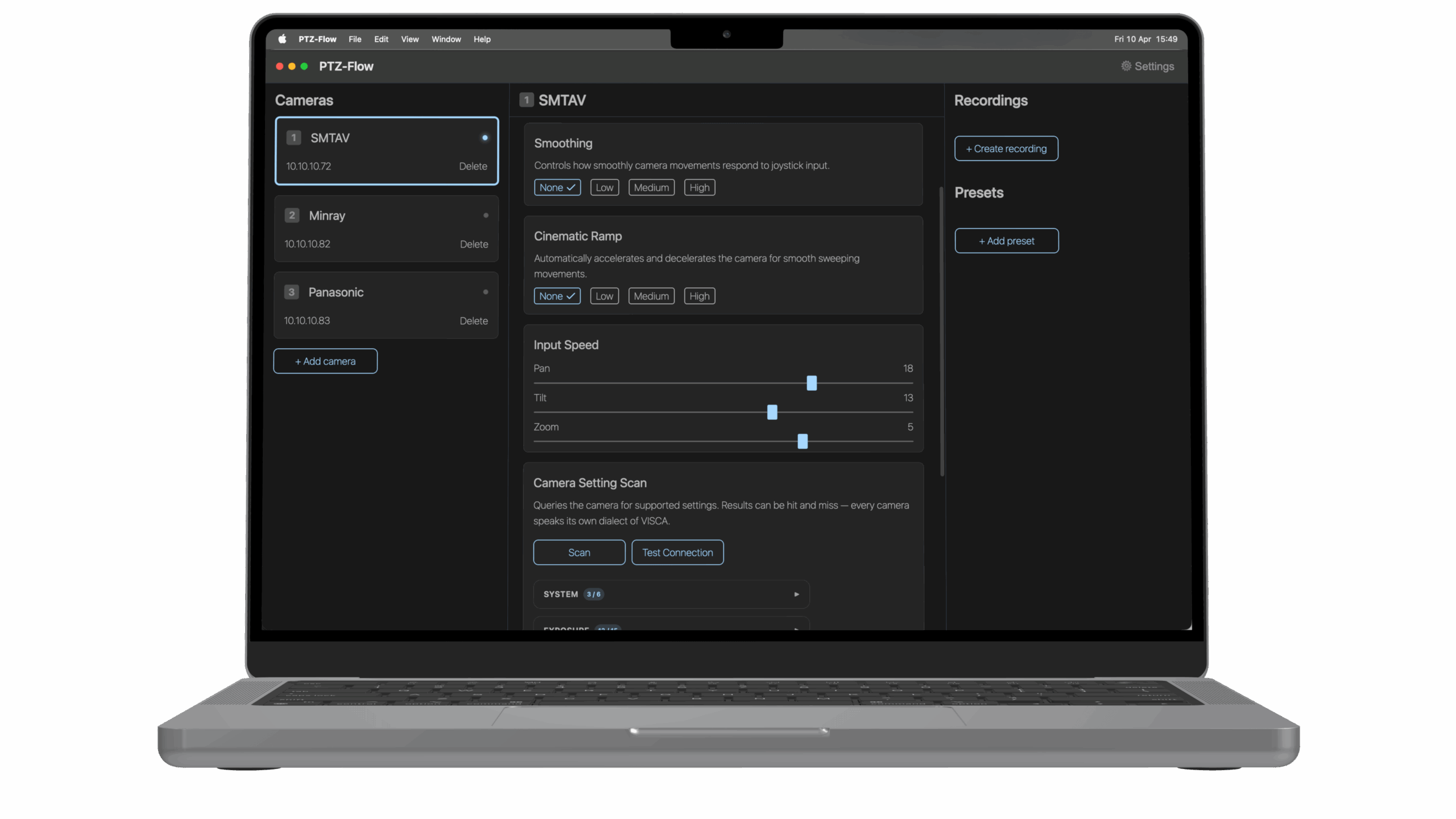
Elevate your production with PTZ Flow. Turn any supported USB joystick or gamepad into a precision control station for your PTZ cameras.

Use your own device
Use any supported gamepad or joystick to control your camera. Bind any stick or button to Pan, Tilt, Zoom, or camera switching.

Speed control
Set speed for Pan, Tilt and Zoom. Settings are saved individually per camera.
Cinematic ramp
Control the start and stop of your movements in three levels.

Control from anywhere
Control functions via HTTP-commands, works with Streamdeck!
Recordings and Presets
Record any movement and play it back, set presets to easy recall positions.

Camera settings
Scan camera settings and control exposure, white balance etc from one place.
No, it must be a supported Joystick or Gamepad. Since the app is directly connected to the RAW data of the input, we need to map every device. Read more about supported devices here. If your device isn’t listed, just let us know. We’d be happy to help add support for your gamepad or joystick!
Read more about supported devices here
Are you getting an error message saying PTZ-Flow is “damaged”, “cannot be opened”, or has an “unknown publisher”?
Don’t worry—the software is completely safe. This happens because the app is currently unsigned, and modern operating systems block it as a standard precaution.
Here is how to fix it in a few simple steps:
1. If Mac says the file is “damaged” (Quarantine Fix)
If macOS claims the file is damaged and tells you to move it to the Trash, it has been locked by system security. Fix it instantly using this command:
- Move the PTZ-Flow app into your Applications folder.
- Open the Terminal app (Press
Command + Space, type “Terminal”, and press Enter). - Copy and paste the following command into Terminal, then press Enter:
xattr -cr /Applications/PTZ-Flow.app
- Close Terminal and open the app normally.
2. If Mac says “Unverified Developer”
If your Mac simply blocks the app because the developer cannot be verified, use this quick right-click trick:
- Open Finder and locate the PTZ-Flow app.
- Hold down the Control (Ctrl) key on your keyboard and right-click the app icon.
- Select Open from the menu.
- A new window will pop up. Click Open one more time to confirm.
(Your Mac will remember this choice, and you can open the app normally next time).
3. For Windows Users
If a blue window pops up saying “Windows protected your PC” (SmartScreen):
A new button will appear at the bottom. Click “Run anyway” to launch the program.
Click the small “More info” link located right under the main warning text.
You can add as many as you want in the paid version, while the demo version is capped to 1 camera for testing purposes.
There is a limit for preset, what the camera can handle, often above 200. Recordings are stored in the app and there is no limit there.
Every purchase is for one PC, you can deactivate your license any time and move PTZ Flow to a new PC
Yes, please reach out to our support e-mail and we get in touch.
Yes we support Mac OS (Intel and Apple Silicon) as well as Windows 11
Currently, we only support the GameSir Nova Lite as a wireless controller. Generally, you will experience good performance when a gamepad has its own dedicated dongle and communicates over 2.4GHz. However, we strongly suggest using a cable regardless. This ensures there are no issues with interference or battery loss. Please note that we do not support any controllers over Bluetooth.